
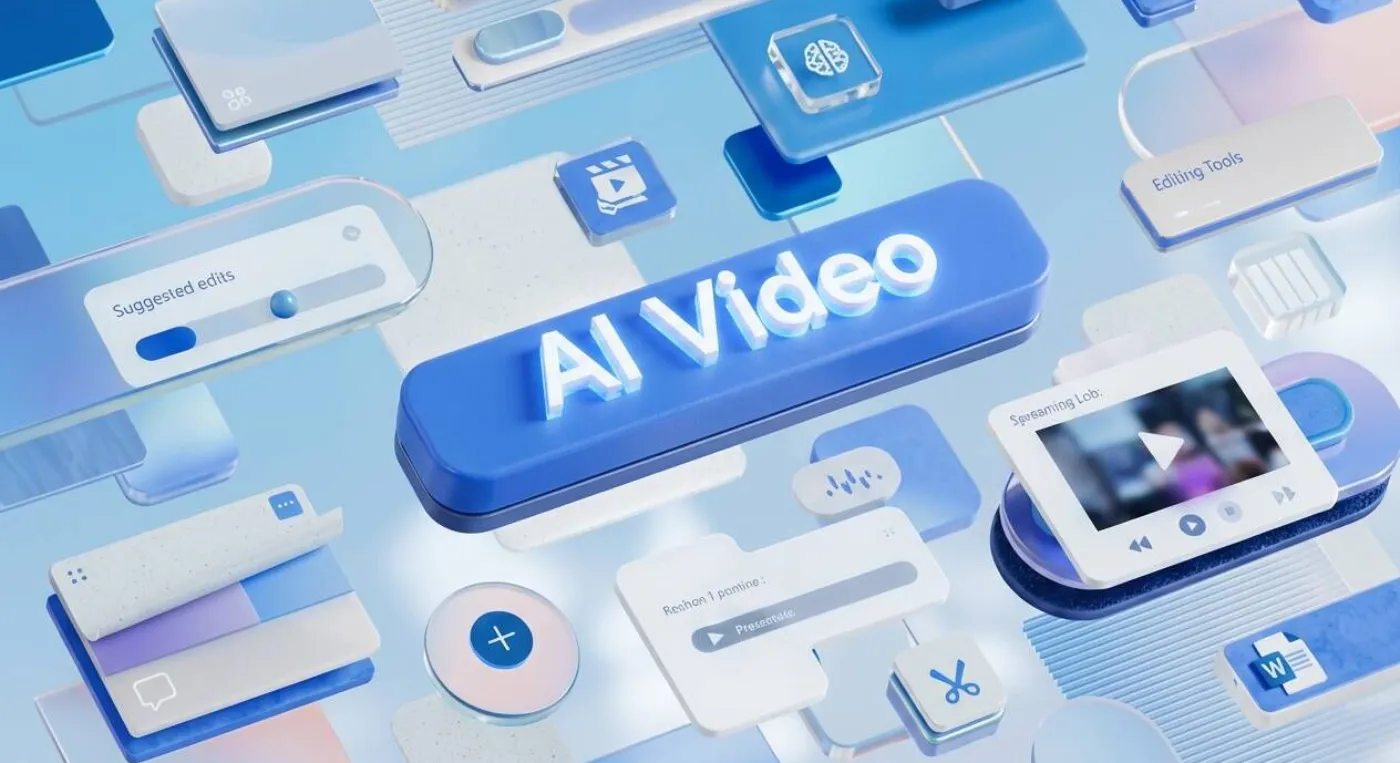
PPT to Video AI: Transform Slides into Videos
Read Time:4 Minute, 38 Second
We’ve all been handed a lengthy PowerPoint deck by a coworker and expected to read through 50 slides on our own. It’s dry, it lacks context, and honestly, most of the important information gets lost without a presenter there to explain it. But getting in front of a camera to record yourself clicking through slides takes a lot of time and usually involves multiple awkward retakes.
That’s exactly why a powerpoint to video ai makes so much sense. These tools can automatically read your slides, pull out the text, grab your speaker notes, and rebuild your presentation as a narrated video. You don’t need a camera, a microphone, or expensive editing software. It bridges that annoying gap between static bullet points and an actually engaging piece of media. Let’s look at how it works and why you might want to start using one.
Why Static Presentations Are Falling Behind
Sending a file full of slides used to be the standard way to share information. The problem is that PowerPoint was built to be a visual aid for a live speaker. When the speaker isn’t there, the slides just aren’t as effective. Recording a quick screen capture over Zoom is a slight upgrade, but if you stutter or need to change one typo later, you have to redo the whole thing.
With the rise of remote work and asynchronous learning, people want information that is easy to consume on their own time. This is where AI presentation tools step in. They act as the live speaker you are missing. For sales pitches, onboarding, or training courses, automating the narration and pacing keeps viewers focused and drastically improves information retention.
How the AI Actually Reads Your Slides
When you look closely at how a platform like Leadde.aI handles a PowerPoint file, it’s a lot more advanced than simply taking pictures of your deck. It uses a specific Slide Presenter engine to break things apart.
First, it extracts the editable layers. Older converter tools would just turn your .pptx file into a bunch of flat JPEG images, leaving you stuck if you needed to make an edit. A modern AI parser opens up the file structure, grabbing your text boxes, shapes, and charts separately. When the slides load into the web editor, everything is still fully editable. If you spot a typo, you can fix it right there. You don’t have to go back to PowerPoint and start over.
Then, there’s the script creation. If you already wrote out what you wanted to say in the “Speaker Notes” section of PowerPoint, the AI simply imports that as the avatar’s script. But what if you didn’t write notes? The AI will actually scan the bullet points on your screen and use a Large Language Model to write a natural-sounding script that explains the visual points.
Finally, the system syncs everything together. It figures out where to place the digital presenter so they aren’t blocking your charts.
The Avatar Makes All the Difference
Having an AI voice read your slides doesn’t mean much if it sounds like a GPS navigation system. And having a digital avatar doesn’t help if it looks stiff and robotic.
Leadde uses what they call the Expressive IV Engine, which honestly feels like a huge step up from typical text-to-speech tools. These avatars don’t just move their lips; they use micro-expressions, take breaths, and use hand gestures that fit what they are saying. If your script is set to an “Analytical” tone for a quarterly earnings report, the avatar acts professional and serious. This adds a critical human element to your corporate slides, keeping the audience connected to the material.
Updating and Localizing Videos Instantly
One of the worst things about traditional video training is that the second a product feature changes, the video is rendered out-of-date.
When you use an AI-driven video platform, updating your video is as simple as editing a text document. Because your slides were imported as editable layers, you just click the text, correct it, maybe adjust the script slightly, and hit “generate” again.
Furthermore, translating a deck is incredibly fast. The AI supports 89 languages. When you tell it to translate, it replaces the English text, swaps the voiceover to the target language, and recalculates the avatar’s lip-sync. It means you can ensure everyone in your global company gets the exact same training quality at the exact same time.
Getting Your Slides Ready for AI
If you’re going to use an AI tool to animate your presentations, keeping a few things in mind will save you time:
- Stick to 16:9: Always design your slides in widescreen format so you don’t end up with black bars on the sides of your video.
- Leave Room for the Avatar: Intentionally leave a bit of blank space—usually in one of the bottom corners—so the presenter has somewhere to stand.
- Write Good Speaker Notes: Because the AI can import your notes directly, taking five minutes to write out what you want to say in PowerPoint makes the video generation process nearly instant.
Moving Beyond the Traditional Deck
Converting your slide decks into fully narrated videos changes the way people interact with your content. By letting an AI handle the voiceover, the pacing, and the design layout, you skip the hardest parts of video production. You get high-quality multimedia that can be updated or translated with a few clicks, making your training and marketing efforts much more scalable and engaging.

Happy
0 %

Sad
0 %

Excited
0 %

Sleepy
0 %

Angry
0 %

Surprise
0 %
 0
0
 0
0
More Stories

BestLinks AI Vs A Paid Invoice For Listings
Directory owners in India often treat a vendor email as a price check. The mailbox looks harmless because no rupee...

The Problem With Software “Best Of” Lists — And What a Recommendation-First Approach Looks Like Instead
Anyone who has tried to pick a SaaS tool recently knows the drill: open a "Top 10" listicle, find ten...

Create Engaging Visual Stories with AI Tools
Visual storytelling is no longer just for professional movie studios or high budget marketing agencies. Anyone with a computer and...
Listing Photos Fail When Image to Image Invents A Shopfront
Customers still walk to the address on the listing. A local Image to Image update is useful only when the...
Create Better Small-Business Marketing Visuals Without a Full Photo Shoot
A small business can need a surprising number of images in one month: a seasonal post, a directory listing, a...
Managing Battle Pass Content Through Headless CMS Architecture
Battle passes have become a major part of live service game design, giving players a structured way to progress through...