
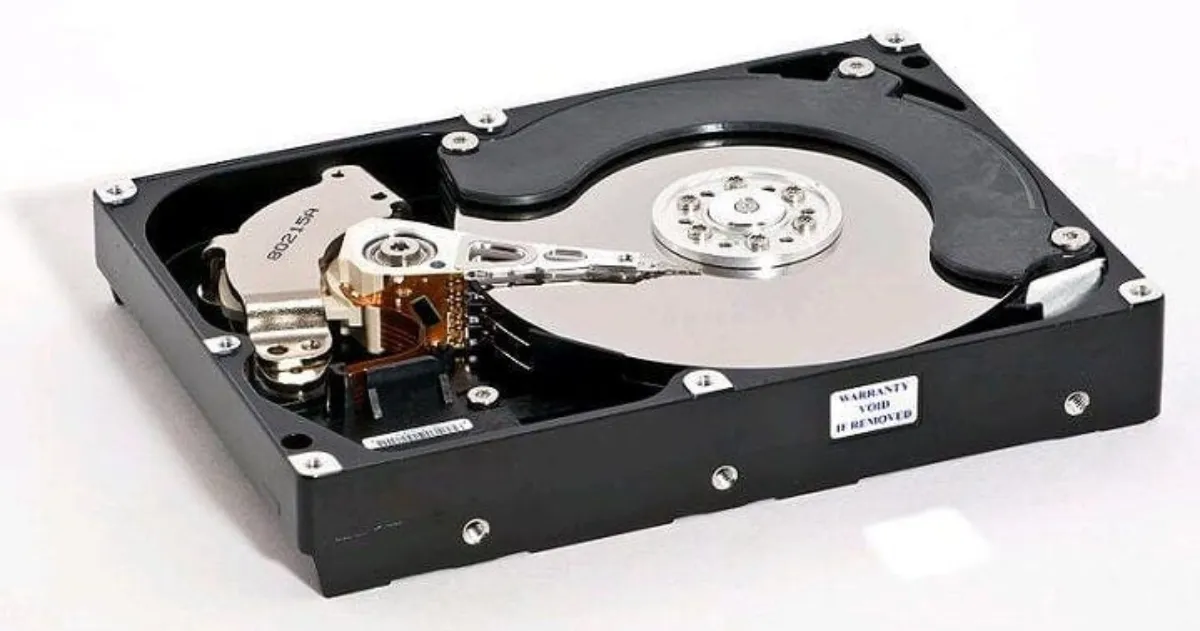
Best Hard Drive Testing Software and Diagnostic Tool
Read Time:5 Minute, 35 Second
Embarking on the quest to safeguard your hard disk’s integrity or unraveling mysterious malfunctions? Explore the vast array of free diagnostic tools dedicated to error detection and disk surface testing. Dive into our carefully curated selection to preemptively shield your drive from failure and the consequential loss of crucial files. Some tools even extend their functionality to error correction, partition table recovery, and handling “bad” HDD sectors. If your HDD is showing signs of failure, you will most likely need to perform diagnostics using the applications listed below. You can also check the prices of the most popular HDDs and SSDs for your laptop.
| Tool | Primary Purpose | Key Features | Supports Repair | Interface | Best Use Case |
|---|---|---|---|---|---|
| Hetman Partition Recovery | Data recovery (not diagnostics) | Recovers lost partitions and files, creates disk images, supports NTFS/FAT32/exFAT, export to drives/FTP | ⚠️ Partial (data recovery, not disk repair) | User-friendly GUI | When data is lost or disk is failing and files need recovery |
| HD Tune Pro | Disk diagnostics & performance testing | Benchmarking, bad sector detection, speed tests, temperature monitoring, detailed stats | ❌ No | GUI | Full disk health analysis and performance evaluation |
| Victoria HDD | Diagnostics + repair | Bad sector detection, Advanced Remap, backup tools, supports IDE/SATA/USB | ✅ Yes | GUI + DOS | Deep diagnostics and fixing bad sectors |
| MHDD | Low-level diagnostics (legacy) | Surface scan, remap, low-level format, MBR recovery, detailed disk info | ✅ Yes | DOS (command-line) | Advanced users working with older HDDs |
| HDDScan | Disk diagnostics | Surface tests (Read/Verify/Erase), SMART monitoring, temperature checks, portable | ❌ No | GUI | Quick diagnostics and drive health checks |
| Seagate SeaTools | General disk testing | Short/long tests, SMART checks, simple reports, supports all drives | ⚠️ Limited | GUI | Easy, beginner-friendly diagnostics |
Navigating the Waters of Disk Health
1. Hetman Partition Recovery: Salvaging Lost Realms
While Hetman Partition Recovery doesn’t dive into disk diagnostics, it emerges as a lifeline when your hard drive is on the brink. Use it when your Hard Drive faces dysfunction, the system refuses to boot, read errors plague you, and your data hangs in limbo. Hetman aids in creating a comprehensive disk image, subsequently restoring the file structure and vital data. Acting swiftly prevents overwrites in sectors containing seemingly lost files, offering a safety net before delving into popular diagnostic tools like chkdsk.
Hetman Partition Recovery Features:
- Locates lost partitions on the hard drive, resolving display issues.
- Creates a full image of data on NTFS, FAT32, and exFAT file systems.
- Facilitates manual and automatic file recovery with a step-by-step wizard.
- Allows data export to internal, external drives, and remote FTP.
- Handles secure data deletion, formatting, and surface remapping.
2. HD Tune Pro: Symphony of Disk Evaluation
HD Tune Pro orchestrates a symphony of checks, unveiling your computer’s hard disk state. It identifies damaged sectors, conducts performance analyses, monitors data transfer speeds, tracks temperatures, detects HDD errors, and even launches a comprehensive benchmark or multi-faceted testing. Compatible with hard disks of any make and format, HD Tune stands out as the most versatile and functional among its counterparts. While it doesn’t mend “bad blocks,” its multitude and quality of tests surpass all analogs.
HD Tune Pro Features:
- Performs holistic checks on hard disks and SSDs.
- Examines read/write speeds of the storage device.
- Displays space utilization statistics.
- Implements a unique algorithm for disk checks, combining various methodologies.
- Includes a benchmark to gauge device performance.
- Tracks dynamic indicators, offering detailed statistics.
- Enables one-click screenshot generation and report file creation.
3. Victoria HDD: Maestro of Diagnostic Harmony
Victoria HDD shines as a diagnostic and “healing” tool, standing among the most popular choices. Available for Windows 7 and bootable DOS versions, it distinguishes itself with a user-friendly interface. Supporting external hard drives via SCSI disk emulation and boasting an excellent Advanced Remap algorithm for reassigning faulty sectors, it also offers intriguing features like spindle stoppage and rotation speed adjustment. How to use Victoria HDD https://recoverhdd.com/blog/using-victoria-for-testing-repair-hard-drive.html.
Victoria HDD 4.47 Features:
- Checks HDDs connected via IDE, SATA, and USB interfaces.
- Conducts tests for errors and bad sectors.
- Resolves software errors and remaps flawed blocks.
- Ensures data safety with built-in backup capabilities.
- Suitable for both console-based and Windows versions.
In July 2018, developers graced users with a substantial update – Victoria 4.6, marking the first major overhaul in seven years. The utility now fully supports the latest SSD models, provides detailed state evaluations, and offers swifter scans. An even newer version is available for beta testing, continuing the legacy of everyone’s favorite hard disk checking utility.
4. MHDD: Unveiling Legacy with a Glimpse into Yesteryear
MHDD, a venerable free diagnostic marvel tailored for IDE and SATA interfaces, exclusively dances to the rhythm of DOS. Crafted in the early 2000s, this tool primarily embraces the classic HDD and older laptop drives, steering clear of the nuances of HDD or IEEE 1394 ports. Despite its vintage origin, MHDD adeptly diagnoses and restores sectors, rivaling the renowned Victoria with its akin algorithms. What is MHDD program https://www.diskpart.com/clone/mhdd-to-fix-the-bad-sectors-1503-gc.html?
MHDD Features:
- Detailed disk health examination.
- Surface scanning and recovery (Remap).
- Low-level formatting.
- MBR boot record restoration.
- Clipping the “faulty” part of the hard disk.
- Comprehensive display of drive information.
5. HDDScan: A Symphony of Disk Diagnostics
HDDScan, an exquisite diagnostic virtuoso designed for computers and laptops, orchestrates surface checks through various methodologies: Verify, Read, Erase, Butterfly Read (commonly using Read). Beyond the symphony of surface scrutiny, it delves into SMART attribute scanning, temperature measurements, and detailed device insights. Unlike its counterparts, HDDScan refrains from tweaking disk parameters or mending sectors, standing as a diagnostic virtuoso with a user-friendly interface.
HDDScan 3.3 Features:
- In-process surface testing of hard disks.
- Multiple sector response analysis methods.
- Displays self-test results of SMART-enabled drives.
- Suitable for pre-purchase checks on regular or solid-state drives – operates without installation and can create a live CD.
6. Seagate SeaTools: Beneath the Waves of Disk Examination
SeaTools from Seagate, a brand-specific gem, extends its capabilities to all disks. Endowed with features reminiscent of HDDScan 4.3, it conversely immerses itself in an English-language veil, guarding the intricacies of its testing algorithms. A medley of short, long, universal tests, and SMART attribute checks enrich its repertoire. Seamless navigation and comprehensive reporting make it an invaluable tool for disk scrutiny.
Seagate SeaTools Properties:
- Employed for multi-method disk health and performance checks.
- Sports a simple and comprehensible English-language interface.
- Outputs test results in a user-friendly format without intricacies.
- Offers exhaustive data about the specific drive model.
- Freely distributed via the official website of hard disk manufacturers.
Embark on the odyssey of disk diagnostics armed with these digital wizards, each bringing its unique melody to the symphony of safeguarding your data sanctuaries.

Happy
0 %

Sad
0 %

Excited
0 %

Sleepy
0 %

Angry
0 %

Surprise
0 %
 0
0
 0
0
More Stories

BestLinks AI Vs A Paid Invoice For Listings
Directory owners in India often treat a vendor email as a price check. The mailbox looks harmless because no rupee...

The Problem With Software “Best Of” Lists — And What a Recommendation-First Approach Looks Like Instead
Anyone who has tried to pick a SaaS tool recently knows the drill: open a "Top 10" listicle, find ten...

Create Engaging Visual Stories with AI Tools
Visual storytelling is no longer just for professional movie studios or high budget marketing agencies. Anyone with a computer and...

Listing Photos Fail When Image to Image Invents A Shopfront
Customers still walk to the address on the listing. A local Image to Image update is useful only when the...
Create Better Small-Business Marketing Visuals Without a Full Photo Shoot
A small business can need a surprising number of images in one month: a seasonal post, a directory listing, a...

Managing Battle Pass Content Through Headless CMS Architecture
Battle passes have become a major part of live service game design, giving players a structured way to progress through...