
The AI Image Editor That Finally Makes Sense of the Model Explosion
Read Time:6 Minute, 2 Second
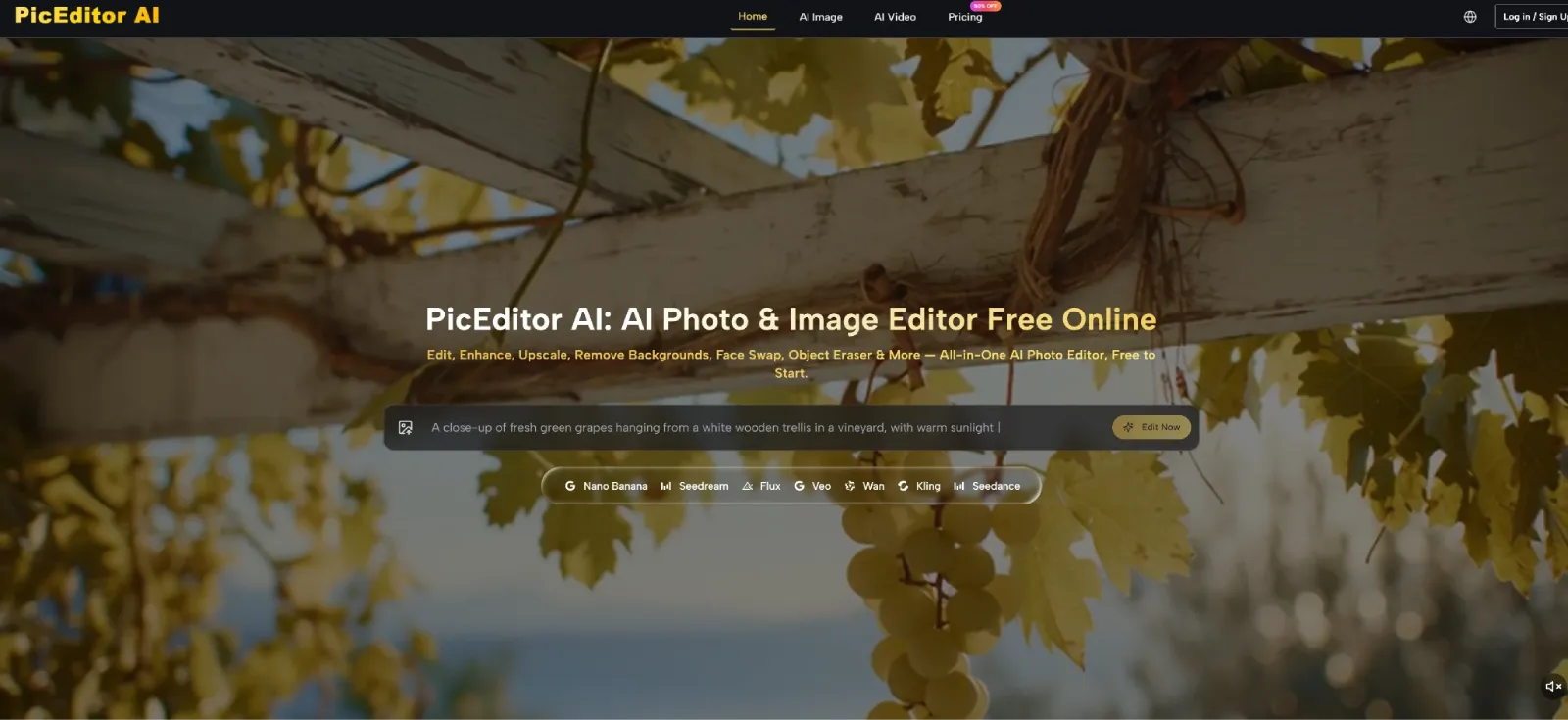
If you have spent any time with AI image generation over the past year, you have likely accumulated a mental map of which model does what. This one handles photorealism. That one is better with text. Another one excels at style transfer. And then there is the video model that occasionally produces something worth keeping. The problem is not that these models are bad. It is that using them effectively means juggling tabs, logins, and subscription pages until the creative momentum drains away entirely. That is the gap AI Photo Editor seems designed to fill: not by building yet another model, but by bringing the best ones together under one roof.
The Aggregation Strategy That Changes the Game
PicEditor AI does not claim to have invented a superior engine. Instead, it has done something arguably more useful for working creators: it integrated multiple industry-leading models into a single editing interface. The roster includes GPT Image 2 from OpenAI, Nano Banana across several variants, Seedream 5.0 Lite and 4.0, Flux Kontext Pro and Max, and Veo 3 alongside Veo 3.1 Lite and Basic. Each of these engines has distinct strengths, and the platform lets you access all of them without switching contexts.
Why This Matters for Real Workflows
In traditional editing software, you are locked into whatever capabilities the application provides. In single-model AI tools, you are at the mercy of that engine’s particular weaknesses. PicEditor AI offers a different proposition: if one model does not quite nail the edit, you can run the same image through another and compare. This is not a theoretical advantage. For someone producing visual content daily, the ability to test multiple interpretations of a prompt without leaving the workspace is a significant time saver.
The Interface Keeps It Simple
Despite the complexity underneath, the front end remains remarkably clean. Upload an image, select what you want to do, and describe the change. The platform handles the rest. There is no requirement to understand which model is best for which task on the first try, though the option to experiment across engines is always available. This low barrier to entry makes the tool accessible to users who are not AI specialists while still offering depth for those who want to dig in.
What the Editing Flow Actually Looks Like
The platform’s workflow is built around speed and clarity. From upload to export, the process is minimal enough that you can complete a full edit in the time it might take to open a traditional application.
Step 1: Get Your Image into the Workspace
The editor opens with a straightforward drop zone. You can drag and drop an image file or click to browse your device. The platform accepts JPG and PNG formats with a maximum file size of 100MB, which covers most high-resolution photographs and exported design files. No account is required to start editing, which removes the friction of signing up before you even know if the tool works for you.
What the File Limit Means in Practice
The 100MB cap is generous enough for professional work. Most DSLR and mirrorless camera exports fall well under this limit, as do high-quality design exports. Heavily compressed or very low-resolution images may not yield the same quality of results, since the AI has less source information to work with. For best outcomes, images with good lighting, clear subject-background separation, and reasonable resolution perform better across all editing functions.
Step 2: Choose Your Edit and Describe It
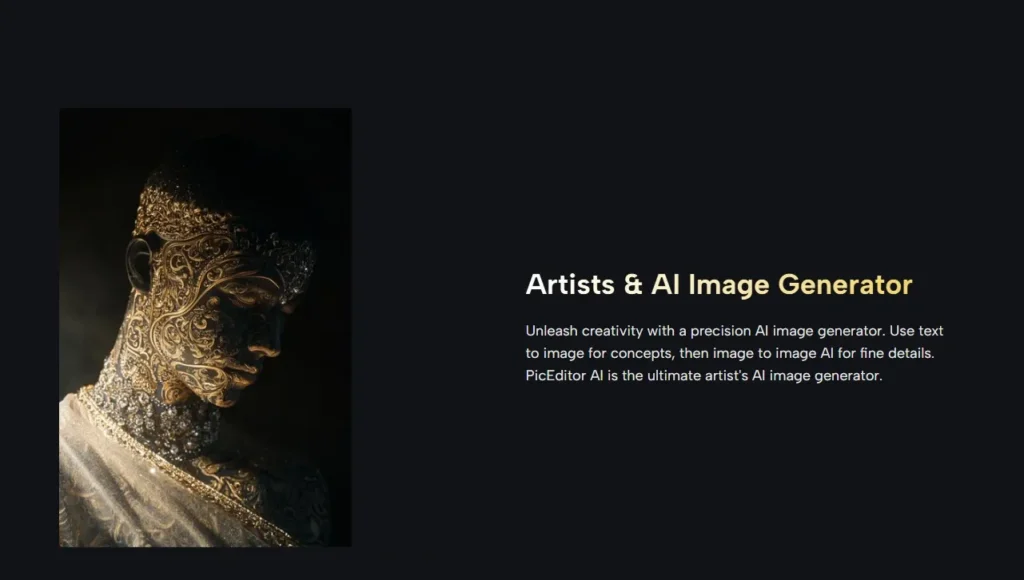
Once the image is loaded, you select a modification tool—enhance, remove, replace, style-transfer, or animate—and type a description of what you want. The interaction is entirely text-driven. There are no sliders, no layer masks, no curve adjustments to learn. This design choice makes the tool immediately usable for anyone comfortable with describing visual outcomes in plain language.
The Relationship Between Prompt Quality and Results
The output quality tracks directly with the specificity of the prompt. Vague instructions produce generic results. Detailed descriptions produce images that feel intentional and polished. The platform provides example prompts that demonstrate the level of detail that works well. These are not just decorative; they serve as practical guides for users who are new to prompt-based editing. For instance, a prompt like “cinematic portrait with dramatic lighting and film grain” yields a more interesting result than “make this look like a movie still.”
Step 3: Process, Review, and Iterate
After submitting the request, the platform processes the image and returns the edited version. Most edits complete in seconds, though more complex tasks—particularly those involving significant scene reconstruction or high-resolution output—may take slightly longer. The platform is optimized for speed, which keeps the creative workflow fluid.
The Iterative Nature of AI Editing
Complex edits may require multiple passes. A single prompt does not always nail the intended result on the first try. However, the ability to refine the description and regenerate makes this manageable. The platform does not penalize you for iterating, which encourages experimentation. This is particularly valuable for generative edits like object removal or background replacement, where the AI’s interpretation of the fill may not match your mental image on the first attempt.
How PicEditor AI Compares to Other Approaches
To understand where this tool fits, it helps to compare it against both traditional software and other AI editing solutions.
| Dimension | PicEditor AI | Traditional Software | Single-Model AI Tools |
| Learning Investment | Low; natural language input | High; requires training | Low to moderate |
| Control Over Output | Prompt-guided; iterative | Full pixel-level control | Limited to model strengths |
| Model Flexibility | Multiple engines accessible | Not applicable | One engine per tool |
| Typical Turnaround | Seconds to minutes | Minutes to hours | Varies by model |
| Best Use Case | Rapid edits, exploration, volume work | Precision, complex compositions | Specific tasks where model excels |
| Result Consistency | Varies with prompt and scene | Consistent with skill | Consistent within model range |
The comparison reveals a clear trade-off. PicEditor AI prioritises accessibility and speed over granular control. It is not a replacement for a professional retouching pipeline, but it handles the majority of everyday editing tasks efficiently.
A Practical Solution for a Fragmented Landscape
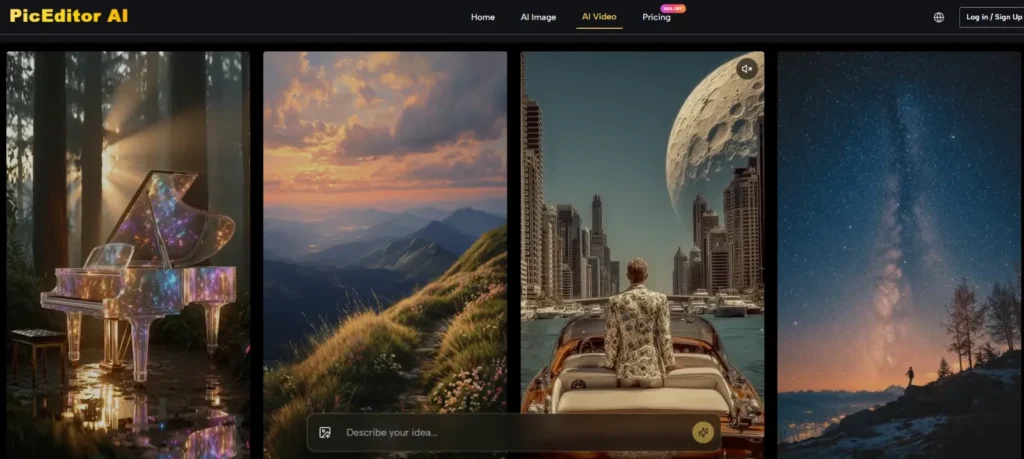
PicEditor AI occupies an unusual and useful position in the AI image editing ecosystem. It is not the most powerful editor on the market, nor does it claim to be. It is an aggregator—a single point of access for multiple capable engines, wrapped in a clean interface that prioritises speed and ease of use over granular control. The real value is in the workflow it enables: one place to upload, edit, and export, instead of maintaining five different subscriptions and juggling tabs.
The trade-off is some control for convenience, and results vary with prompt quality and scene complexity. For creators who need to move fast, experiment often, and produce polished visuals without becoming AI prompt engineers, this approach makes sense. And in a landscape where new models emerge weekly, having access to multiple engines without switching contexts is a practical advantage that should not be overlooked. The AI Photo Edit experience is worth testing, particularly if you are tired of the fragmentation that currently defines the AI creative space. The core functions are free, the learning curve is shallow, and the results—while not always perfect on the first try—are often surprising in the best way.

Happy
0 %

Sad
0 %

Excited
0 %

Sleepy
0 %

Angry
0 %

Surprise
0 %
 0
0
 0
0
More Stories

10 Best HR Software for Large Enterprises in India
Managing a workforce spread across thousands of employees, multiple states, and a tangle of compliance jurisdictions is work that demands...

How Industry-Specific Digital Marketing Drives Growth for Dental, Medical Tourism and Fashion Brands
The key focus of every industry in the present world is to have a distinct digital marketing strategy. Without that,...

BestLinks AI Vs A Paid Invoice For Listings
Directory owners in India often treat a vendor email as a price check. The mailbox looks harmless because no rupee...

The Problem With Software “Best Of” Lists — And What a Recommendation-First Approach Looks Like Instead
Anyone who has tried to pick a SaaS tool recently knows the drill: open a "Top 10" listicle, find ten...

Create Engaging Visual Stories with AI Tools
Visual storytelling is no longer just for professional movie studios or high budget marketing agencies. Anyone with a computer and...
Listing Photos Fail When Image to Image Invents A Shopfront
Customers still walk to the address on the listing. A local Image to Image update is useful only when the...